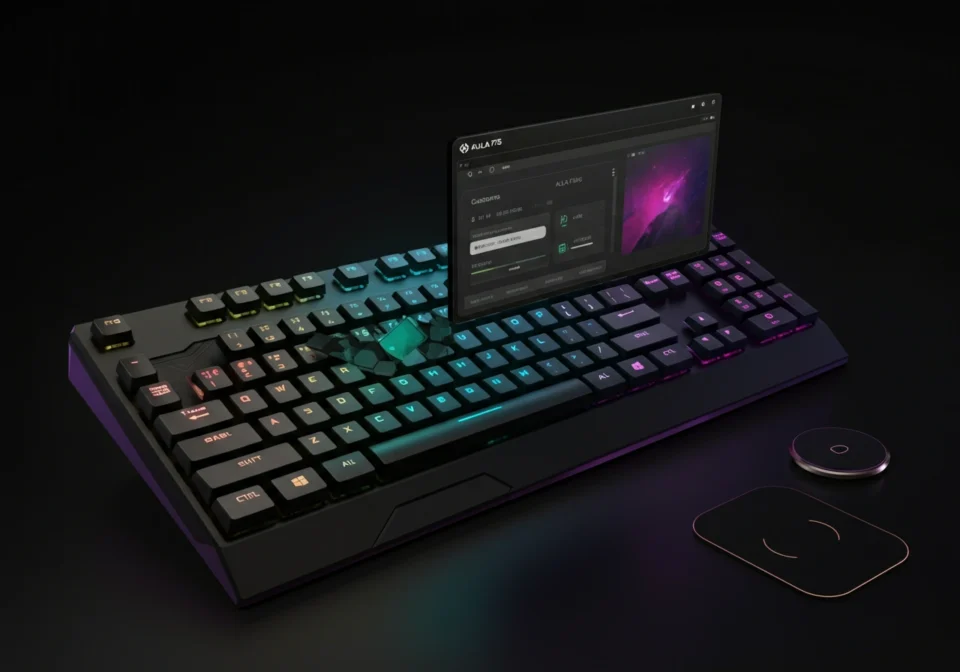
If you’ve just unboxed the Aula F75 mechanical keyboard, you’re holding a fantastic piece of hardware known for its satisfying feel and impressive features. But to truly unlock its full potential, you need to get familiar with the Aula F75 software. This companion application is the control center for your keyboard, allowing you to tailor everything from lighting effects to complex macros.
This guide will walk you through everything the Aula F75 software has to offer. We’ll explore its key features, user interface, performance, and how you can get started. By the end, you’ll have a clear understanding of how to make your Aula F75 keyboard uniquely yours.
What Can the Aula F75 Software Do?
The software is designed to give you granular control over your keyboard’s functionality. It’s more than just a settings panel; it’s a powerful tool that transforms a great keyboard into a personalized command center. Let’s look at what makes it so useful.
Key Features and Benefits
The Aula F75 software packs a range of features that cater to gamers, programmers, and everyday users alike.
- Key Remapping and Customization: One of the most powerful features is the ability to reassign any key. You can swap the function of two keys, assign a multimedia control (like play/pause or volume up) to a specific key, or even disable keys you frequently hit by accident, such as the Caps Lock or Windows key. This is perfect for optimizing your workflow or creating a gaming layout that gives you a competitive edge.
- Advanced Macro Recording: The macro editor is a standout feature. It allows you to record a sequence of keystrokes and assign it to a single key. This is invaluable for complex combos in games or for automating repetitive tasks in applications like Photoshop or Excel. The software lets you record keystrokes, set delays, and edit your macros with precision.
- RGB Lighting Control: The Aula F75 is known for its vibrant RGB backlighting, and the software is where you bring it to life. You have access to dozens of preset lighting effects, from simple static colors to dynamic waves and reactive ripples. You can also customize the speed, brightness, and direction of these effects. For those who want complete control, the software often includes a per-key customization mode, allowing you to create your own unique color schemes.
- Multiple Profiles: The software allows you to create and save multiple configuration profiles. You can set up a profile for work with specific macros and a neutral lighting scheme, then switch to a gaming profile with a different key layout and a dynamic RGB effect with the press of a button. This makes it easy to adapt your keyboard to any task without having to reconfigure it every time.
A Tour of the User Interface
When you first open the Aula F75 software, you’ll find a straightforward and visually intuitive layout. The main screen typically displays a graphical representation of your keyboard, making it easy to select specific keys for customization.
Main Dashboard and Navigation
The interface is generally divided into several key sections, accessible through tabs or a side menu:
- Key Assignment: This is where you’ll spend time remapping keys. Clicking on a key on the virtual keyboard opens a menu of options for what you want that key to do.
- Lighting: The lighting tab presents all the RGB options. You can browse through a dropdown list of preset effects and see a live preview on your physical keyboard. Sliders for brightness and speed offer quick adjustments.
- Macro Editor: This section provides a dedicated interface for creating, editing, and deleting macros. The recording process is simple: hit record, type your sequence, and then stop. You can then fine-tune the macro by adjusting the delay between keystrokes.
- Settings: A general settings area allows you to manage software updates, change the language, and control how the software launches.
The design prioritizes function over flash. While it may not have the slickest animations, it’s responsive and easy to navigate. Most functions are just a few clicks away, ensuring you can make changes quickly and get back to what you were doing.
Performance and Efficiency
A common concern with peripheral software is its impact on system resources. Bloated software can slow down your computer and interfere with games.
Fortunately, the Aula F75 software is designed to be lightweight. It consumes minimal CPU and RAM while running in the background. A key design choice is that once your settings are configured and saved to the keyboard’s onboard memory, you don’t need to keep the software running. Your profiles, lighting effects, and macros are stored directly on the F75. This means you can plug your keyboard into another computer that doesn’t have the software installed and still have access to all your custom settings. This is a huge advantage for users who switch between multiple devices.
Compatibility and Integration
The Aula F75 software is designed specifically for Windows operating systems. Currently, there is no official native support for macOS or Linux. Mac users may be able to use virtualization software like Parallels to run the Windows application and configure their keyboard, but it’s not a seamless solution.
The configuration settings are saved to the keyboard’s onboard memory, so once you’ve set it up on a Windows machine, your customizations will carry over to a Mac or Linux system. However, you will need a Windows environment to make any new changes.
How to Get Started with Aula F75 Software
Getting up and running is a simple process.
- Download the Software: The first step is to find the correct software. It’s usually not included in the box. You can typically find the official download link on the Aula website, the retailer’s product page, or through community forums like Reddit. Be sure to download the software specifically for the F75 model to ensure compatibility.
- Install the Application: Run the installer and follow the on-screen prompts. The installation is usually quick and straightforward.
- Connect Your Keyboard: Make sure your Aula F75 is connected to your computer via its USB-C cable. The software should automatically detect the keyboard. If it doesn’t, try unplugging and replugging the keyboard or restarting the software.
- Explore and Customize: Once your keyboard is detected, you’re ready to start customizing. Begin by exploring the lighting effects, then try remapping a few keys. Don’t be afraid to experiment—you can always reset to default settings if needed.
- Save Your Profile: After you’ve configured your settings, make sure to save them to a profile. This ensures your changes are stored on the keyboard’s onboard memory.
Is Aula F75 Software Right for You?
The Aula F75 keyboard is an excellent product right out of the box, but the Aula F75 software elevates it from a good keyboard to a great one. It provides a deep level of customization that allows you to tailor the device to your exact needs, whether for gaming, productivity, or creative work.
With its intuitive interface, powerful macro editor, and extensive RGB controls, the software gives you the tools to create a truly personal experience. The lightweight design and ability to save profiles directly to the keyboard’s onboard memory are significant advantages, ensuring performance is never compromised. While the lack of macOS support is a drawback for Apple users, the overall functionality for Windows users is robust and easy to use.
If you own an Aula F75, downloading and mastering its companion software is a crucial step in getting the most value out of your purchase.
